My sensor won't scan OR I got a “Scan Error” while trying to pair my Instinct sensor. What do I do?
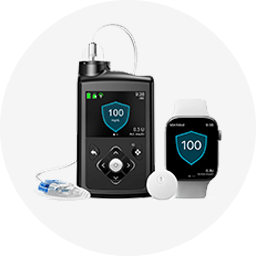
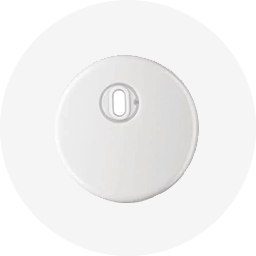
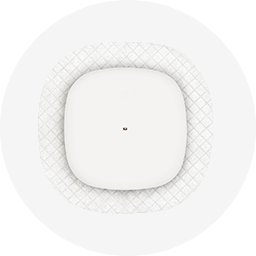
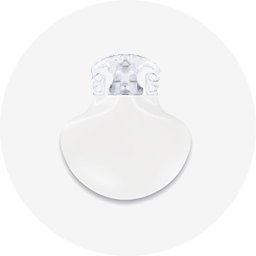
The “Scan Error” message might mean that your smartphone or App Manager was unable to scan your Instinct sensor. The MiniMed™ 780G system uses a feature called NFC (near-field communication) to connect the sensor to your pump. NFC is a connection that works when your phone is held very close to the sensor.
- Make sure your pump is on the Home screen with no active alerts, alarms, or bolus delivery before scanning.
- Ensure NFC is turned on: For iPhone users, NFC is always on. For Android users, while NFC is often on by default, be sure that it is toggled on. You can do this by opening the settings menu and search for NFC in the search bar and toggle on.†
- Find the sweet spot: Where and how you hold your phone matters. While scanning, make sure you don't touch any buttons on the phone or the screen. Slowly move your phone over the sensor to find the NFC spot on your phone. You may need to hold your phone still over each spot for a few seconds until it scans. Once you find it, consider marking it for future scans.
- Proximity, orientation, and other factors can affect NFC performance. For example, a bulky or metallic phone case can interfere, so for best results remove the case before scanning.
iPhone: Tap the scan button and try scanning the sensor again. The NFC antenna is on the top edge of the phone. Scan your sensor by touching the sensor with the top of your phone.
Android & App Manager: Tap the scan button and try scanning the sensor again. The NFC antenna is located on the back side of most Android phones. NFC location varies by phone model. Check your phone's online user guide. If the guide isn't clear, follow the steps on the back to find the scanning spot.
If this issue persists after repeated attempts of scanning, please contact our
† Directions above vary depending upon device. Check your mobile device’s online user guide for more info.